
SankeyEngine is a data visualization add-in for Microsoft Excel. It uses a two-layer architecture: the Excel layer remains minimal, while compute-intensive logic runs in a separate engine.
- Frontend: A lightweight, transparent layer within the .xlam file that handles the Excel interface (ribbon).
- Math library (SankeyEngine.dll): A standalone math layer that performs complex flow calculations. Running the computations in the DLL keeps the Excel side lean, which typically results in fast execution and stable behavior, even under heavier workloads.
How to install SankeyEngine?
- Unpack the SankeyEngine.zip file.
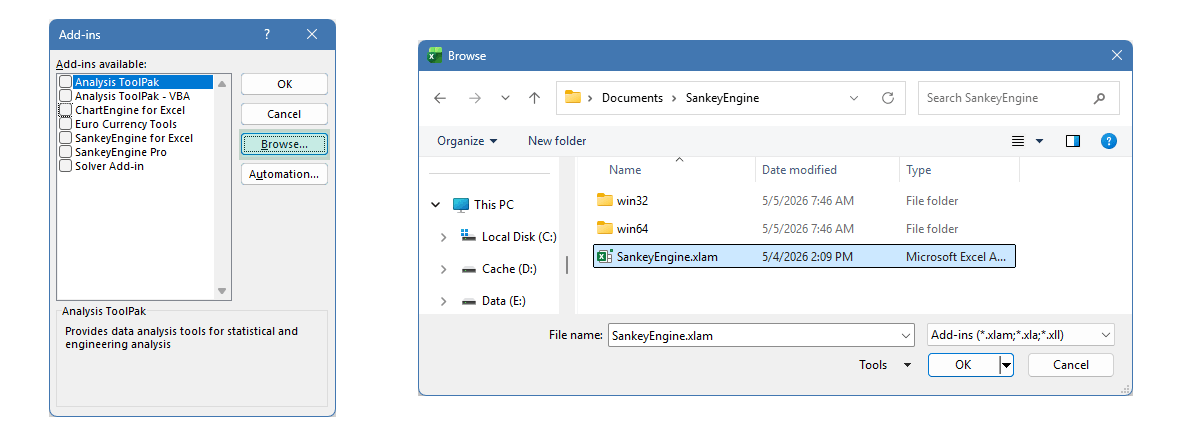
- Copy the provided files into your Documents folder, for example: C:\Users\Documents\SankeyEngine\
- Ensure this folder contains the following files:
- SankeyEngine.xlam
- SankeyEngine.dll (64-bit version by default)
- (For 32-bit Excel, replace the DLLs with the versions from the \x86\ subfolder.)
- Open Excel.
- Navigate to: File → Options → Add-ins → Manage: Excel Add-ins → Go…
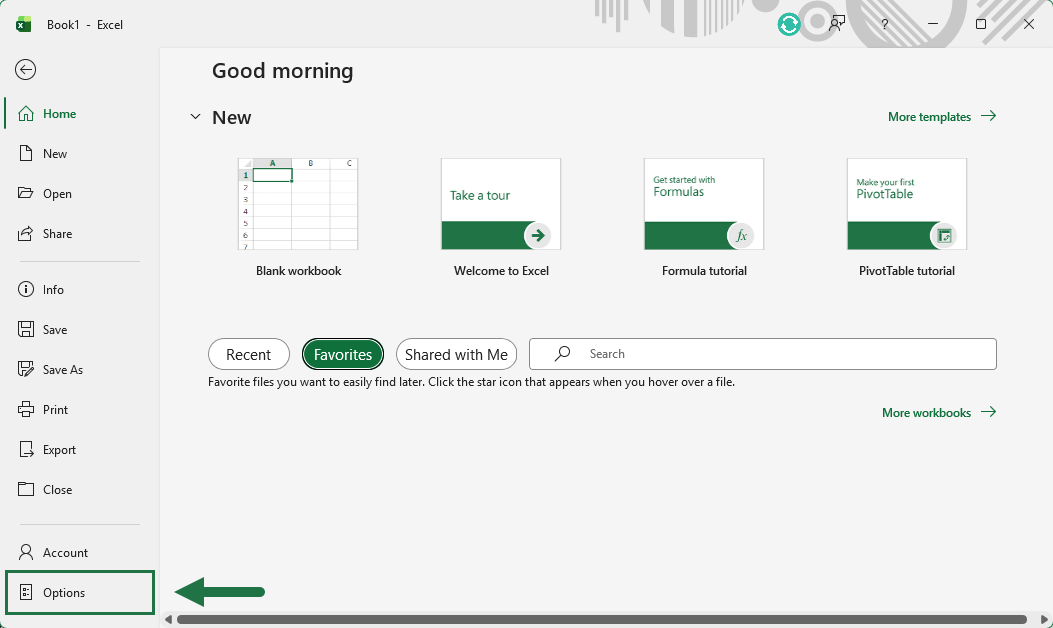
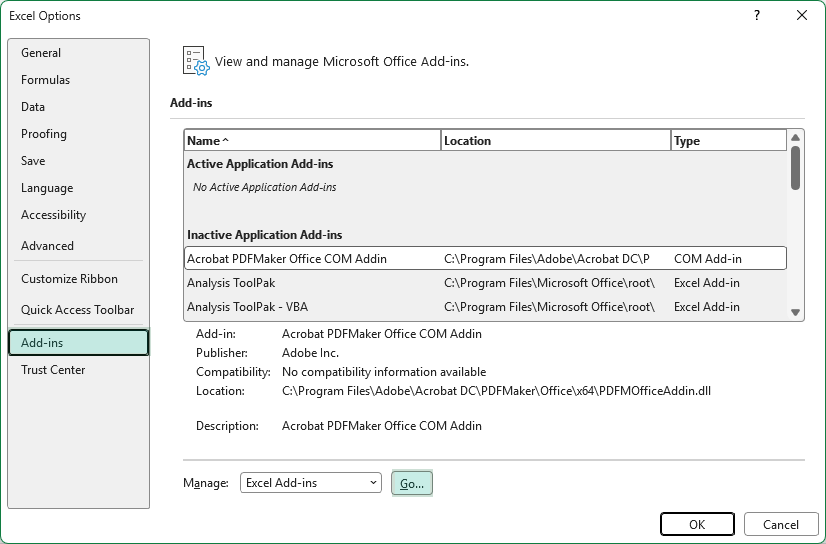
Click Browse…, select SankeyEngine.xlam from your Documents\SankeyEngine folder.
Ensure the checkbox next to SankeyEngine is enabled.
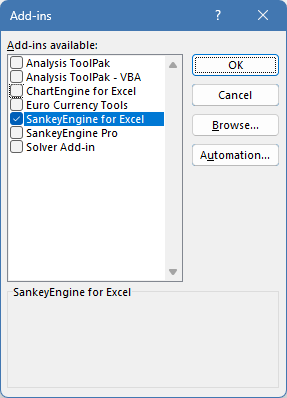
From this point, SankeyEngine will appear automatically in the Excel Ribbon.

Quick Start & Troubleshooting Guide: SankeyEngine
Because this tool uses a powerful local engine (a .dll file) alongside the Excel add-in (the .xlam file), Windows and Excel security protocols might initially block it from running. If the add-in simply refuses to load, please follow these 3 steps before starting Excel.
1. Do NOT Run from OneDrive or Network Drives
Cloud synchronization services often lock background files while syncing. This file-locking will prevent the SankeyEngine DLL from initializing.
- Action: Move the entire extracted SankeyEngine folder to a strictly local directory on your computer’s hard drive.
- Recommended paths: C:\Users\YourName\Documents\SankeyEngine\
- Important: Ensure both the .xlam and .dll files are kept together in this same new folder.
2. Unblock the Files in Windows
Whenever you download dll or .xlam files from the internet, Windows applies a tag called “Mark of the Web” which blocks them from running. You must manually lift this restriction.
- Action: Go to your newly created local SankeyEngine folder.
- Right-click on the SankeyEngine.dll file and select Properties.
- Look at the bottom of the General tab. If you see a Security section, check the box that says “Unblock” (or click the Unblock button).
- Click Apply, then OK.
- Crucial: Repeat this exact same process for the SankeyEngine.xlam file!
3. Add to Excel Trusted Locations
Even after unblocking the files in Windows, Excel needs explicit permission to run the code from your new folder.
- Action: Open a blank Excel workbook.
- Navigate to File > Options > Trust Center.
- Click the Trust Center Settings… button.
- Select Trusted Locations from the left-hand menu.
- Click Add new location… at the bottom.
- Browse to your local SankeyEngine folder (C:\Users\YourName\Documents\SankeyEngine\).
- Check the box that says “Subfolders of this location are also trusted“.
- Click OK on all windows to save and exit.
Final Step: Completely close Excel and restart it. You can now open the SankeyEngine.xlam add-in, and it should load perfectly!